
Installing the theme
Install Goodnews through the WordPress dashboard or over FTP, and activate it.
Goodnews ships as a single ZIP file, goodnews5.zip, downloaded from your ThemeForest downloads page. There are two ways to install it: through the WordPress dashboard, or by uploading the theme folder over FTP. Use the dashboard method unless your file is too large for your host's upload limit.
Requirements
Goodnews requires WordPress 5.0 or later and PHP 7.4 or later. It has been tested on WordPress 7.1 and PHP 8.2.
Install through the WordPress dashboard
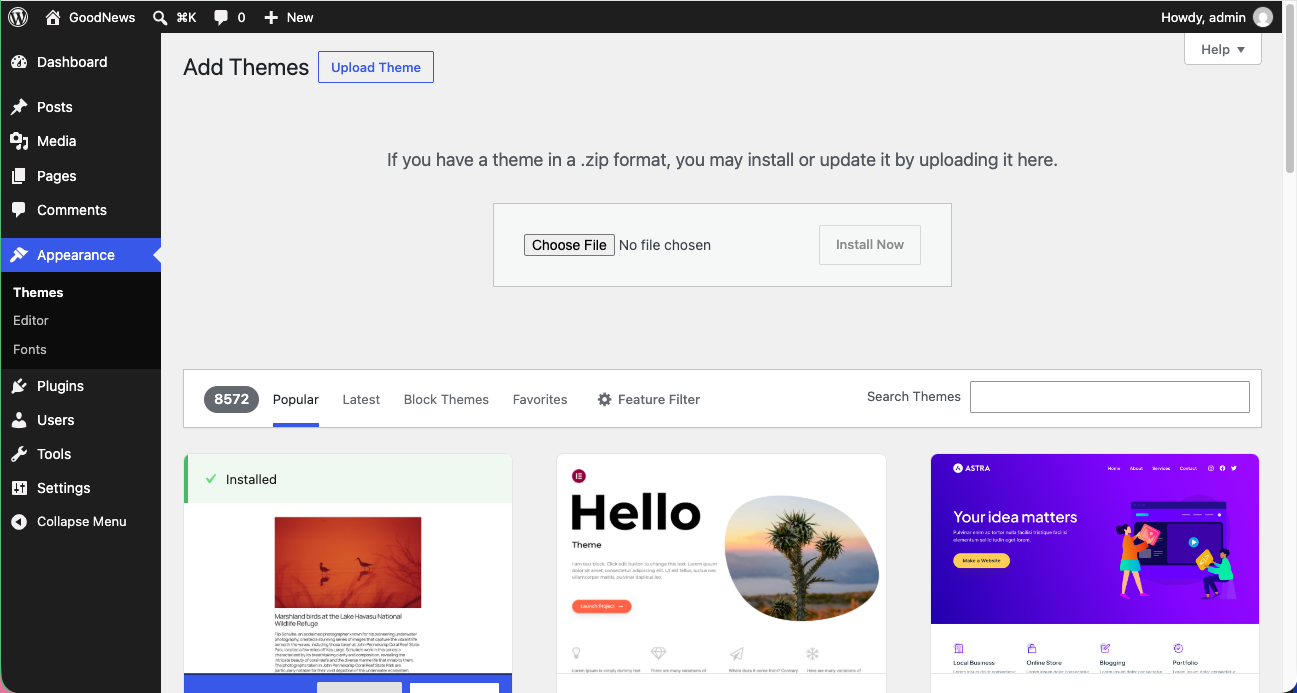
- In your WordPress dashboard, go to Appearance → Themes → Add New Theme.
- Click Upload Theme.
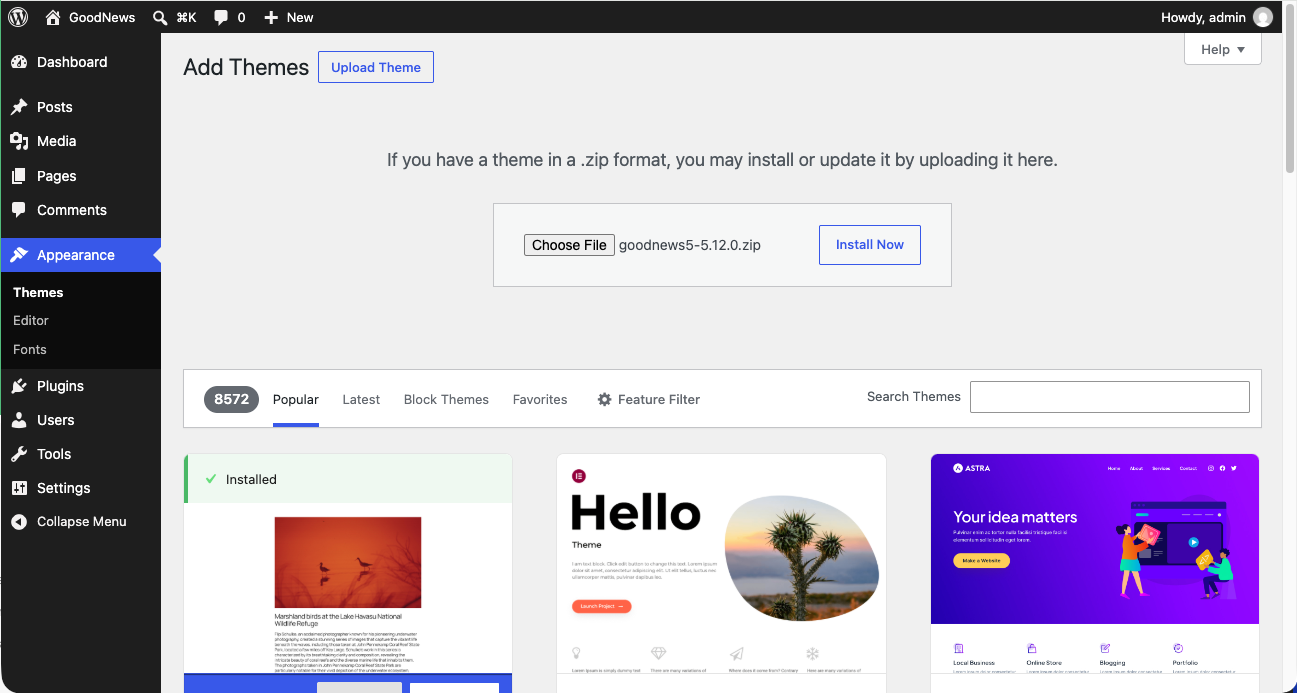
- Click Choose File and select
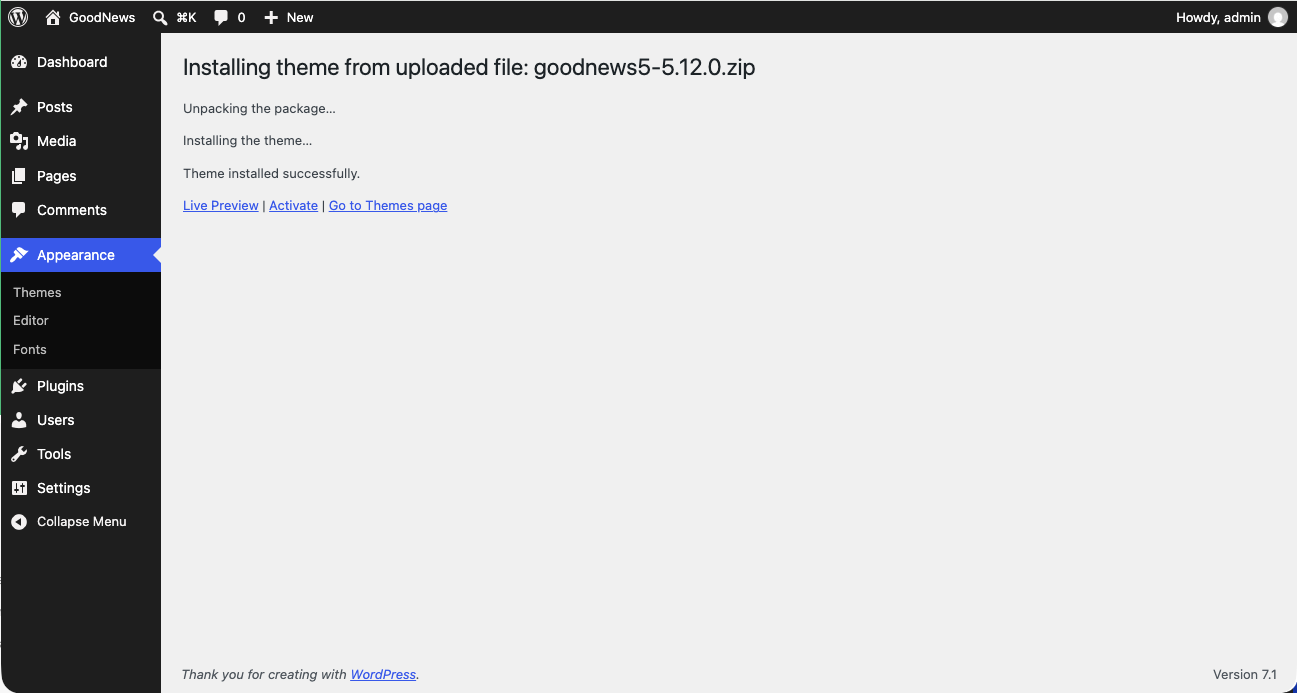
goodnews5.zipfrom your computer. - Click Install Now and wait for the upload to finish.
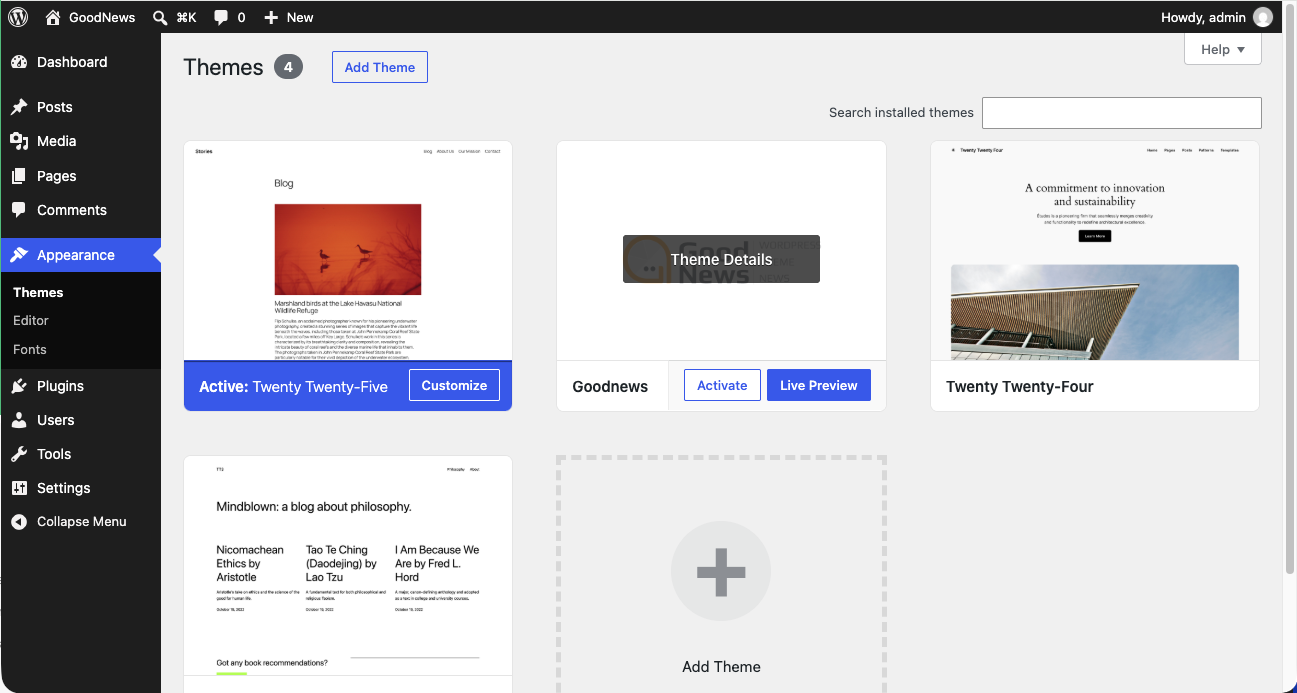
- Click Activate.
Install over FTP
- Unzip
goodnews5.zipon your computer. This produces a folder namedgoodnews5. - Connect to your host with an FTP client.
- Upload the
goodnews5folder towp-content/themes/on your server. - In your WordPress dashboard, go to Appearance → Themes and activate Goodnews.
After activation
Activating the theme does not install any content. To start with a populated site that looks like the demo, see Importing the demo content. To build your own site from scratch, continue with The theme options panel.
If the theme fails to install
A "broken theme" or "missing stylesheet" error usually means the ZIP was unzipped before upload, or the wrong file was selected. Upload goodnews5.zip itself — do not unzip it first when using the dashboard method. If you continue to see this error, see Missing stylesheet on install.